How to use FaceReady with Zoom, Teams, Meet & Discord
It's the same idea everywhere: open the app's camera setting and choose FaceReady instead of your webcam. Open FaceReady first so it's running, then go into your call app. Here's where each one keeps the setting.
Zoom
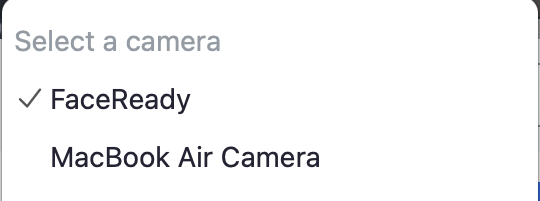
Click your profile picture, then Settings → Video. Under Camera, pick FaceReady. You can also change it mid-call from the small arrow next to the Stop Video button.
Microsoft Teams
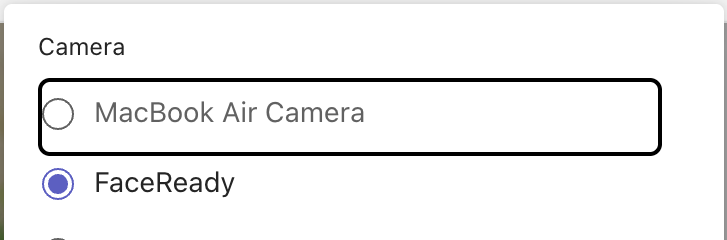
Before a call, go to Settings → Devices and set Camera to FaceReady. In a call, open … (More) → Settings → Device settings and change it there.
Google Meet
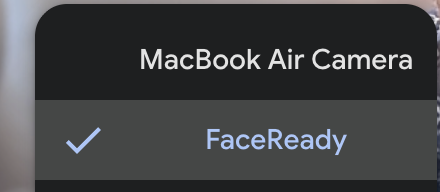
Meet runs in your browser. On the green room before you join, or from the … menu during a call, open Settings → Video and choose FaceReady as the camera.
Discord
Open User Settings (the cog) → Voice & Video. Under Video Settings, set Camera to FaceReady. The preview there shows you it's working.
FaceReady not in the list? These apps read their camera list when they launch. If one was already open while FaceReady was starting, quit it completely and reopen it — then FaceReady shows up. More in camera isn't showing.
Still stuck? Email our contact form and tell us which app you're using, and we'll help.