FaceReady camera isn't showing in your video app
This is almost always a timing thing, not a broken install. Video apps build their camera list when they launch, so if FaceReady wasn't fully ready at that moment, it won't be in the menu. Work down this list — the first step fixes it most of the time.
1. Quit and reopen the video app
This is the big one. Zoom, Teams, Meet, Discord and the rest read the camera list once, at startup. If your app was open while you installed or started FaceReady, it simply doesn't know FaceReady exists yet. Quit the app completely and open it again, then look in its camera menu.
On a Mac, closing the window isn't quitting. Press ⌘Q or right-click the Dock icon and choose Quit. On Windows, check the system tray and close it from there too if it's still running.
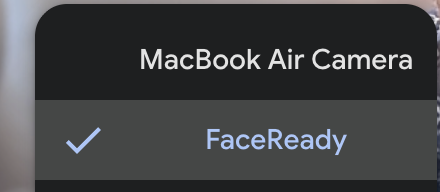
2. On Mac, confirm the FaceReady camera is on
macOS needs you to switch the camera on once before any app can see it. If you skipped that during setup, FaceReady won't appear in any video app. Open System Settings → General → Login Items & Extensions, find FaceReady, and flip it on. Step-by-step in where's the camera extension.
3. On Mac, restart after installing or updating
macOS only registers a camera extension fully after a restart — and when FaceReady updates, the new version's camera can stay hidden until a reboot clears out the old one. So if FaceReady is switched on (step 2) but still isn't in the list — especially right after an update — restart your Mac, then reopen your video app. This is the fix when everything looks right but the camera just won't appear.
4. On Windows, make sure FaceReady is installed and running
On Windows the installer registers the camera for you, so there's no switch to find. But FaceReady has to actually be running for the camera to send a picture. Open FaceReady, leave it running, then go back to your video app and pick it from the list.
5. Scroll the whole camera list
It sounds obvious, but some apps tuck a long camera list behind a scroll or a "more" option. Make sure you've looked at every entry, not just the first two or three. FaceReady shows up by name.
Still stuck? Email our contact form with your computer and the video app you're using, and we'll get you sorted.