The sliders do nothing / no effect on my face
Nine times out of ten this is the same thing: your video app is showing your raw webcam, not the FaceReady camera. The sliders only change the FaceReady feed — they can't touch a picture coming straight off your webcam. Here's how to check.
1. Is FaceReady actually on?
Check the FaceReady on/off button at the top of the controls reads FaceReady on. If the whole effect is off, the sliders have nothing to act on.
2. Can you see the effect in FaceReady's own preview?
Look at the preview inside FaceReady first, before checking your video app. Drag a slider — say, the de-age or smoothing one — right up so the change is obvious. If your face changes here, FaceReady is working fine and the problem is which camera your video app is using. If it doesn't change even here, see the bottom of this page.
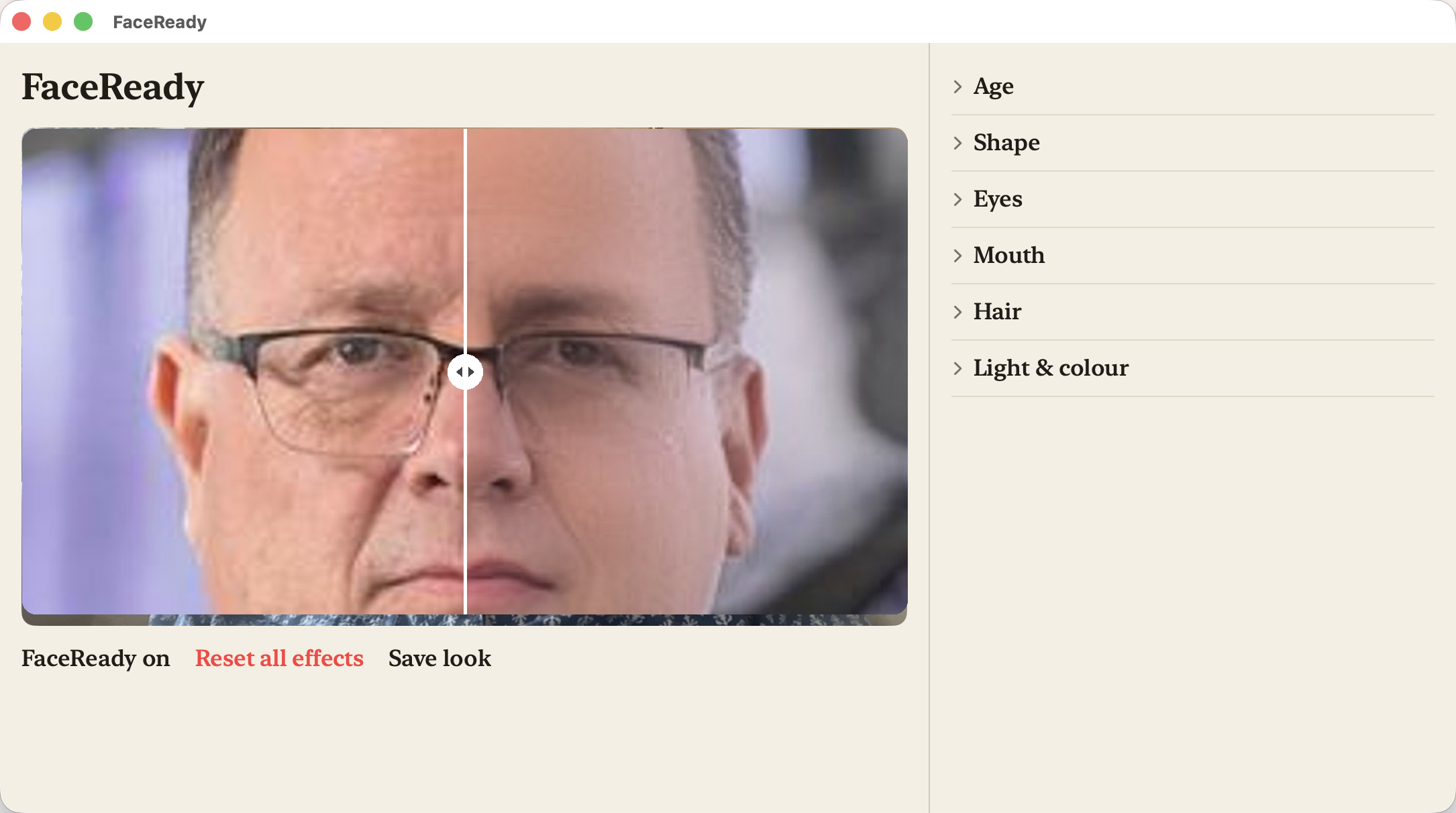
3. Is your video app set to the FaceReady camera?
This is the usual culprit. Open the camera settings in Zoom, Teams, Google Meet, Slack or whatever you're on, and pick FaceReady from the camera list — not "FaceTime HD Camera", "Built-in" or your external webcam's name. If the app is pointed at your real webcam, you'll see your plain face no matter what the sliders do.
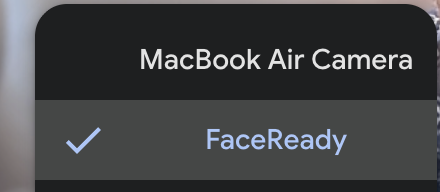
FaceReady not in the camera list? Video apps read their camera list when they launch. If the app was open while you installed, quit it completely and reopen it. More on this in camera isn't showing.
Still nothing, even in FaceReady's preview?
If the sliders don't change the preview inside FaceReady, that's a different problem — the camera feed itself. Try the black screen fix, then email us if it's still stuck.
Still stuck? Email our contact form and a real person will help.